








How to see which apps are using the internet on Windows, Mac and Linux
The network is slow, the fan is spinning, your data plan runs out too early: which program is using the internet? Here is how to find out with your system's own tools, and how to see it all in one place.
Short answer: on Windows open Resource Monitor (resmon) and look at the Network tab; on a Mac open Activity Monitor and pick the Network tab; on Linux use sudo nethogs for each program's speed and sudo ss -tupn for its connections. To see everything together, with site names, alerts and history, use spectraNET.
On Windows
Windows has three tools, each good for a different question.
- Task Manager (Ctrl+Shift+Esc): the Processes tab has a Network column with each program's speed right now. Click the header to bring the busiest to the top.
- Resource Monitor: press Win+R, type
resmonand open the Network tab. For each process you get bytes sent and received per second, the addresses it talks to and its open TCP connections with local and remote ports. - Command Prompt, run as administrator:
netstat -abnolists every connection with the program name (-b) and its PID (-o).
netstat -abnoFor the last 30 days of usage, app by app, go to Settings → Network & internet → Advanced network settings → Data usage.
On a Mac
Open Activity Monitor (Spotlight, ⌘+Space) and pick the Network tab: every process shows bytes and packets sent and received. Click the Rcvd Bytes column to sort.
Terminal has two commands already installed:
nettop -P            # each process's speed, live
sudo lsof -i -P -n   # open connections and the program that opened them
In nettop, -P groups rows by process; press q to quit.
On Linux
Distributions don't ship a graphical panel for this, but two commands are enough.
sudo apt install nethogs   # Debian and Ubuntu (dnf install nethogs on Fedora)
sudo nethogs               # each program's speed, live
sudo ss -tupn              # TCP and UDP connections with program and PID
You need administrator rights: without sudo you only see your own programs, not the system's.
What these tools leave out
They work, but they answer only half the question. They tell you firefox is downloading at 2 MB/s, not which site it is talking to. They show IP addresses instead of names. They don't know whether a connection is encrypted, whether the address is on a list of malicious servers, or whether that program has never connected there before. And, apart from Windows, they keep no history of past days.
All of it at once with spectraNET
spectraNET is a free network monitor for Windows, macOS and Linux that measures every connection of every program and shows it as a city: each tower is an application, topped by its real icon, and its height is its speed right now.

Click a tower and the app tells you in plain words what it is doing: how fast it downloads, which site gets most of its traffic and whether its connections are encrypted. It learns site names from DNS answers and TLS and QUIC handshakes, without decrypting anything.

It also does what the built-in tools don't:
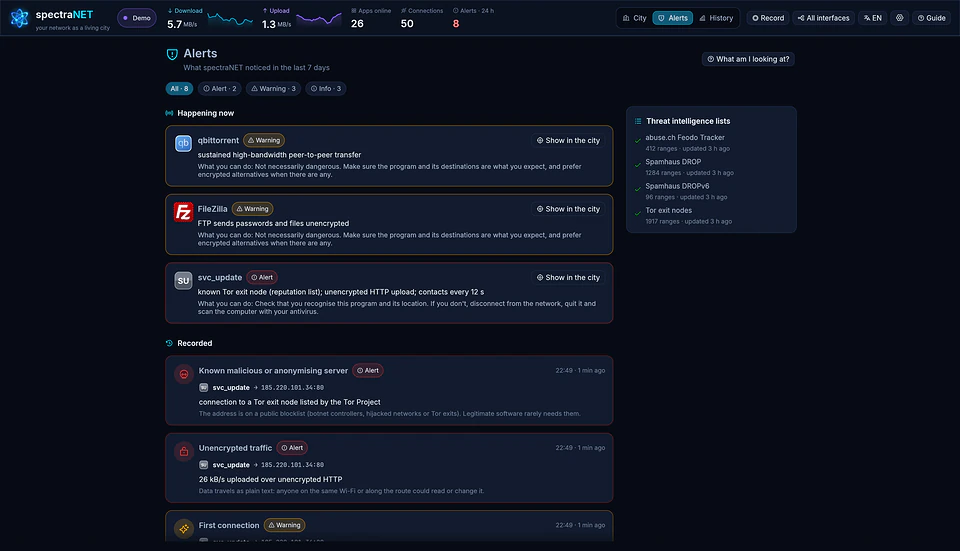
- Alerts: it flags a program contacting a server on public threat lists (abuse.ch Feodo Tracker, Spamhaus DROP, Tor exit nodes), unencrypted traffic to the internet, and programs connecting to an address for the first time.
- What kind of traffic it is: video, music, calls, web pages, downloads or games, recognised from the service and the shape of the traffic, without reading its content.
- History: how much each app used over the last 7 or 30 days, even while spectraNET is closed.
- Actions: pause an app, end it, or cut it off the network for 15 minutes, an hour or a day.
If you prefer the terminal, there is the open-source snet command line:
snet top                    # interactive full-screen view
snet list -c --sort down    # apps and connections, sorted by download
snet stream --name chrome   # what kind of traffic each connection carries
It runs on macOS 11 or later, Windows 10 and 11 (64-bit) and Linux with kernel 5.8 or later. Installing takes a minute from the spectraNET page.
Frequently asked questions
How can I tell if a program is secretly sending data?
Look at each app's outgoing traffic (upload): Activity Monitor on a Mac and Resource Monitor on Windows both show it. A program that uploads far more than it downloads, or that connects at regular intervals even when you are not using it, deserves a look. spectraNET flags known malicious servers and new connections by itself, and snet record plus snet analyze look for clockwork check-ins.
Do I need administrator rights?
To see every user's programs and the system's, yes: sudo on Mac and Linux, an administrator prompt for netstat -b on Windows. spectraNET asks for your password once, to install its background service.
Does spectraNET read what I type or which pages I visit?
No. It never decrypts your traffic and never uploads it: it only reads what travels in the clear, such as the site name in the TLS handshake. The only things it downloads are public lists of malicious servers.