Tethera

Your computers, from any computer.

Tethera is a VNC remote desktop for Mac, Windows and Linux: see every computer's screen live, connect with one click and copy and paste as if you were there. It works with Mac Screen Sharing and any VNC server. Free, with no account and no tracking.

Version 1.3.1 macOS, Windows, Linux Also for ARM PCs Free

Real screenshot of Tethera

The Mac in the studio, the Linux box that acts as a server, the Raspberry Pi in the attic: sooner or later you need to get your hands on a screen that is not in front of you. Tethera keeps them all on one home screen with a live preview of each display and gets you in with one click, every session in its own window. Copy and paste works both ways, files are dragged onto the window and, when you are away, Tethera goes through an always-on computer at home by itself, without opening ports on your router. On Mac, Windows and Linux you get the same app, with the same look.

Your computers, from any computer.

A VNC remote desktop for Mac, Windows and Linux: your computers, at home or away.

All your computers, at a glance.

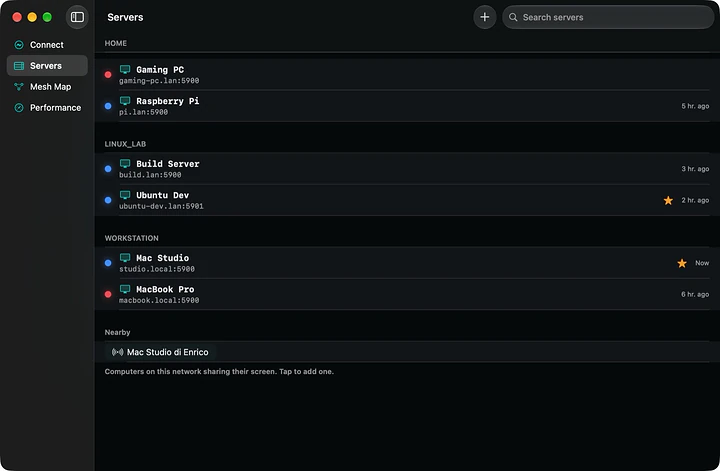
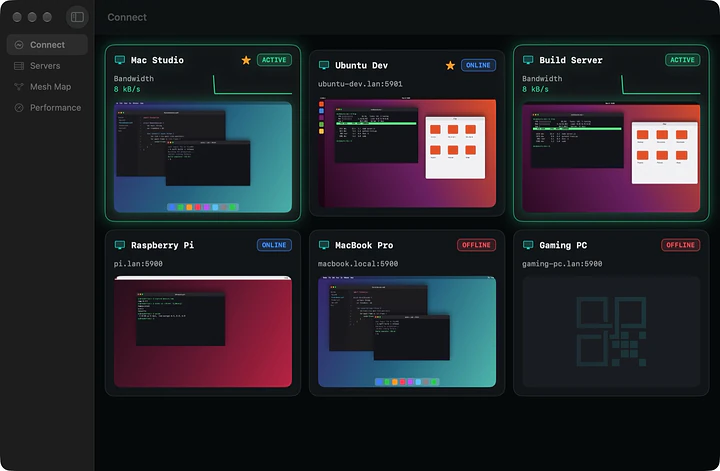
The home screen shows a card for every computer with a live preview of its screen, its status (online, offline or active) and, while connected, the bandwidth. You know at once which one is on and what it is doing, before you even connect.

  • One click on the card and you are in
  • Favourites and groups to keep home and work apart
All your computers, at a glance.

Every session in its own window.

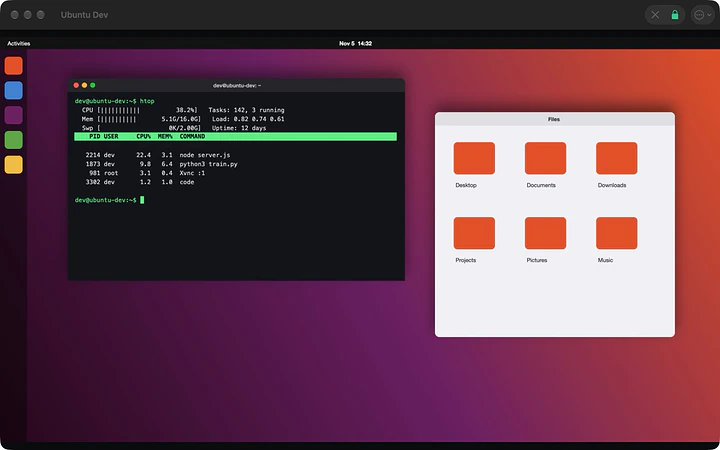
Every computer opens in a window of its own: keep two side by side, put them on different monitors, close one without touching the others. The remote screen is drawn by the GPU (Metal on the Mac, Direct3D 11 on Windows, OpenGL on Linux) and only the part that changes is updated, so even a 4K desktop stays smooth and light.

  • Zoom in, out and actual size with ⌘+, ⌘- and ⌘0 (Ctrl on Windows and Linux)
  • The remote desktop's resolution can follow your window
  • A padlock tells you at once whether the session is encrypted
Every session in its own window.

Copy here, paste there.

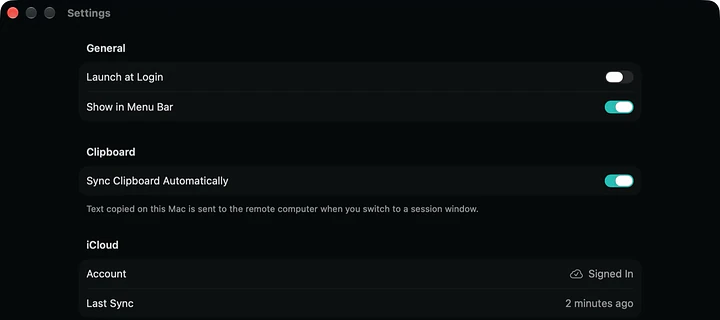
Copy and paste just works: what you copy on the remote computer lands on your clipboard, and what you copy on yours reaches the remote computer when you switch to its window. Tethera sends Ctrl+C to Windows and Linux and ⌘C to a Mac, without you having to think about it.

  • Type the clipboard key by key, for login screens that do not accept paste
  • Ctrl+Alt+Del from the Session menu
Copy here, paste there.

Mac, Linux, Windows, Raspberry Pi. One app.

Tethera talks to Mac Screen Sharing (with your Mac account), to TigerVNC, x11vnc and wayvnc on Linux, to TightVNC, UltraVNC and RealVNC on Windows and to the Raspberry Pi's VNC. Computers on your network show up by themselves in Nearby: one click and they are on your list.

  • Finds servers that do not announce themselves too, such as TightVNC on Windows and TigerVNC on Linux
  • Wake-on-LAN to wake a sleeping computer
  • vnc:// links open the server editor already filled in
Mac, Linux, Windows, Raspberry Pi. One app.

Away from home, without opening ports.

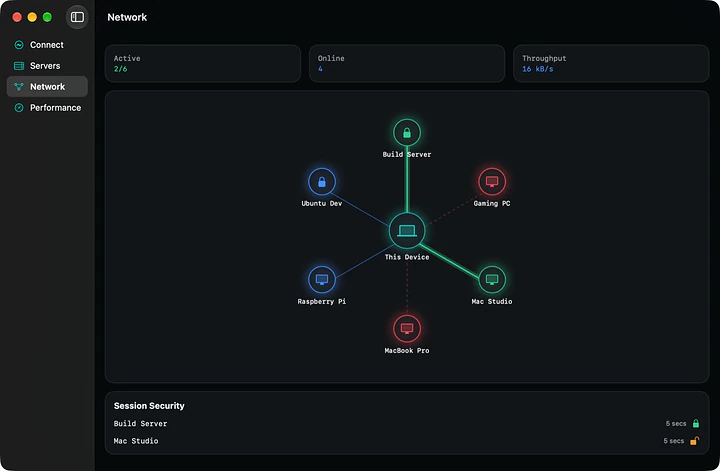
To reach your computers from outside you do not need to expose VNC to the Internet. All it takes is an always-on computer at home that accepts SSH (a Linux server, a NAS, a Raspberry Pi): in Automatic mode Tethera connects directly when you are home and goes through it when you are out, encrypted all the way home. With Tailscale or another VPN, the computer's VPN address is all you need.

  • Built-in SSH tunnel, with key or password, and server fingerprint check
  • The Network view shows which computers are online, active and encrypted
Away from home, without opening ports.

Files, by drag and drop.

VNC carries only the screen, mouse and keyboard, so Tethera adds a channel for files: SFTP over SSH, encrypted. Drag a file onto the session window and it lands on the remote computer's Desktop, or in the folder you choose. The folder button browses the remote computer, uploads and downloads.

  • A file with the same name is never overwritten
  • Away from home, files travel through the gateway like the session
Files, by drag and drop.

Light, even when the network is not.

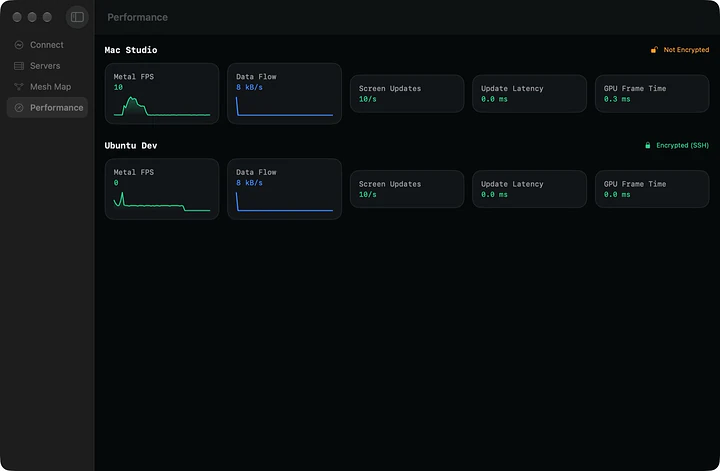
About 100 MB of memory and no CPU use when the remote screen is still. Tethera measures the bandwidth during the session and adapts the picture without reconnecting: more compression and, on very slow links, fewer colours, then back to full quality as soon as the network allows. With wayvnc, H.264 video is decoded in hardware.

  • The Performance view shows frames, data flow and latency for every session
  • Optimized, Video (H.264) and Compatibility profiles for older servers
Light, even when the network is not.

Private, in your language.

No account, no analytics, no tracking: Tethera connects only to the computers you add. Passwords and SSH keys live in the Keychain on the Mac and are encrypted with a key kept by the system on Windows and Linux. English, Italian, French, German and Spanish, with a built-in guide that explains every feature.

  • On the Mac: iCloud sync between your Macs, Siri, Shortcuts, widgets and Touch ID
  • On Windows and Linux an icon in the notification area with active sessions
Private, in your language.

At a glance

Systems
macOS 15 Sequoia or later (Apple Silicon and Intel), Windows 10/11 x64 and Windows 11 ARM64, x86_64 and ARM64 Linux
VNC servers
macOS Screen Sharing, TigerVNC, x11vnc, wayvnc, TightVNC, UltraVNC, RealVNC, Raspberry Pi
Picture
GPU rendering, Tight/JPEG, ZRLE, Hextile, hardware H.264, adaptive quality
Sessions
One window per session, zoom, resolution matched to the window
Clipboard and files
Two-way copy and paste, SFTP files by drag and drop
Networking
SSH tunnel, automatic SSH gateway away from home, Tailscale and VPNs, Wake-on-LAN, nearby computers
Security
Keychain on the Mac, DPAPI on Windows, Secret Service on Linux; SSH server fingerprint
Languages
English, Italian, French, German, Spanish
License
Free, including professional use
Get Tethera.

Pick your system. On Windows you install it from the Microsoft Store, signed by Microsoft; for Mac and Linux the files come from the official releases on GitHub.

macOS

Apple Silicon and Intel

Open the DMG and drag Tethera into Applications. It is signed and notarized by Apple, so it opens with no warnings. It works on Apple Silicon and Intel Macs with macOS 15 Sequoia or later.

Windows

x64 and ARM64

Install it from the Microsoft Store: it is signed by Microsoft, installs with no warnings and updates itself. 64-bit Windows 10 (1809) or 11.

For Snapdragon PCs and Windows in Parallels on Macs: the Microsoft Store version is native ARM64, signed by Microsoft and updates itself.

Linux

x64 and ARM64

The AppImage runs on any distribution without installing: make it executable (chmod +x) and open it. On Debian, Ubuntu and Mint: sudo apt install ./tethera_1.3.1_amd64.deb; on Fedora, RHEL and openSUSE: sudo dnf install ./tethera-1.3.1-1.x86_64.rpm. For H.264 video install openh264.

For Raspberry Pi 4/5 with 64-bit Raspberry Pi OS and ARM laptops: the same packages in the arm64/aarch64 build (sudo apt install ./tethera_1.3.1_arm64.deb).

Release notes on GitHub

Requirements

Mac: macOS 15 Sequoia or later, Apple Silicon (M1 or later) or Intel; the Liquid Glass look needs macOS 26 Tahoe. Windows: 64-bit Windows 10 or 11, or Windows 11 on ARM. Linux: x86_64 or ARM64, with .deb (Debian, Ubuntu), .rpm (Fedora, RHEL, openSUSE) or AppImage packages; H.264 video needs OpenH264 (openh264 package). Windows and Linux have no iCloud sync, Siri, widgets or Handoff. You need a computer running a VNC server, reachable on your network, from away through the SSH gateway or with a VPN such as Tailscale.

License

Free, including professional use. The source code is not public.

Questions and answers

Is Tethera free?

Yes, Tethera is free on Mac, Windows and Linux, with no account, no ads and no subscriptions, including for professional use and on as many computers as you like. If you find it useful, you can support its development with a donation.

What do I need to install on the computer I want to control?

On a Mac, nothing: turn on System Settings › General › Sharing › Screen Sharing and sign in with your Mac account. On Linux a VNC server such as TigerVNC, x11vnc or wayvnc; on Windows TightVNC, UltraVNC or RealVNC Server; on a Raspberry Pi just turn on VNC in its configuration.

Can I connect when I am away from home?

Yes, without opening ports on your router. If you have an always-on computer at home that accepts SSH (a Linux server, a NAS, a Raspberry Pi), choose Away from Home › Automatic in the server editor: Tethera goes through it when you are out, encrypted. With Tailscale or another VPN, just use the computer's VPN address. Never expose VNC directly to the Internet.

Is VNC secure?

Plain VNC protects only the password, not the screen and keys: that is fine on your home network. On other networks turn on Tethera's SSH tunnel, which encrypts the whole session and checks the server's fingerprint; a padlock in the window always tells you whether the session is encrypted.

Can I transfer files?

Yes, over SFTP on the same SSH connection: drag files onto the session window or use the folder button to browse, upload and download. The remote computer needs SSH turned on: Remote Login on a Mac, OpenSSH Server on Windows, openssh-server on Linux.

Will I see a security warning on first launch?

No. On the Mac Tethera is signed with an Apple Developer ID certificate and notarized by Apple, so it opens like any other app. On Windows (x64 and ARM64) you install it from the Microsoft Store, where it is signed by Microsoft: no "Windows protected your PC" warning and automatic updates.

Does Tethera collect any data?

No. No account, analytics or tracking: Tethera connects only to the computers you add and, on the Mac if sync is on, to your own iCloud. Passwords and keys stay on your computer, encrypted.

How does it update?

On the Mac by itself: it finds and installs new versions. On Windows the Microsoft Store updates it. On Linux download the new version from this page and install it over the old one. What is new in each version is in the release notes on GitHub.

Is Tethera useful to you?

Tethera is free, with no account, no ads and no tracking, and built after hours. If it saves you a trip to the office or the attic, a donation pays for the time to build the next versions. Tethera is already signed on macOS, thanks to a supporter, and on Windows through the Microsoft Store.

Next app: Termina An SSH client for Mac, Windows and Linux: terminal, files, tunnels and keys kept safe.