













Free VNC remote desktop: Mac, Windows and Linux
The Mac at the office, the Linux PC in the basement, the Raspberry Pi with no monitor: with VNC you control them from another computer as if you were there. Here is how to turn on the server on every system, how to connect securely and how to do it from away too.
In this guide8
In short: to control a computer remotely with VNC, turn on a VNC server on the computer you want to control (on a Mac it is Screen Sharing, already built in; on Windows TightVNC, UltraVNC or RealVNC; on Linux TigerVNC, x11vnc or wayvnc) and connect with a VNC client to the computer's address, port 5900. At home that is all; from outside never open the port on your router: use a VPN such as Tailscale or an SSH tunnel. A client such as Tethera (free, for Mac, Windows and Linux) puts all your computers on one screen with live previews and goes through the tunnel by itself when you are away.
VNC or Windows Remote Desktop?
VNC sends the picture of the screen and sends mouse and keyboard back: you see exactly what is on the remote computer's monitor, and it works across different systems. It is the simplest way to control a Mac (macOS Screen Sharing is a VNC server), a Linux PC or a Raspberry Pi. Windows Remote Desktop (RDP) opens a separate session instead, and is only available as a server in the Pro and Enterprise editions. If your computers run different systems, or you have Windows Home, VNC is the road they all share.
1. Turn on the VNC server on the computer to control
- Mac: System Settings › General › Sharing › Screen Sharing. You sign in with the name and password of a Mac account, with no separate VNC password.
- Windows: install TightVNC, UltraVNC or RealVNC Server and set a VNC password. If the PC shows as offline even when it is on, allow ping (ICMP echo) in Windows Firewall.
- Linux: on X11 TigerVNC (
vncserver :1, port5901) or x11vnc to share the screen that is already open; on Wayland wayvnc. Set a password withvncpasswd. - Raspberry Pi:
sudo raspi-config› Interface Options › VNC, or Raspberry Pi Configuration › Interfaces.
Note down the computer's address (for example 192.168.1.50) and the port: usually 5900, 5901 for display :1, 5902 for :2 and so on.
2. Connecting at home
Every Mac already has a VNC client: in Finder press ⌘K and type vnc://192.168.1.50, or type the same address in Safari's address bar. On Windows and Linux you need a client to install. For one or two connections now and then any client will do; if you often connect to several computers, a client that keeps them tidy, remembers passwords and knows how to use a tunnel when you are away is worth it.
3. Is VNC secure?
Plain VNC protects the password, but does not encrypt the screen and the keys: anyone on the same network could see them. On your home network that is acceptable; on public Wi‑Fi or across the Internet it is not. The fix is to run VNC inside SSH, which encrypts everything. From a terminal:
ssh -L 5901:localhost:5900 user@192.168.1.50Then connect your VNC client to localhost:5901: the session travels encrypted and the VNC server can stay closed to the network. The remote computer needs SSH turned on: Remote Login on a Mac, OpenSSH Server on Windows (Settings › System › Optional features), openssh-server on Linux.
4. From away, without opening ports
The temptation is to forward port 5900 on your router. Don't: VNC servers exposed to the Internet are found and attacked within hours. There are two safe roads:
- A VPN such as Tailscale (or ZeroTier, WireGuard): install it on the computer at home and on the one you connect from, then use the computer's VPN address (
100.x.y.z) as if you were home. - An SSH gateway: an always-on computer at home that accepts SSH from the Internet (a Linux server, a NAS, a Raspberry Pi), with a key instead of a password. The tunnel goes through it:
ssh -L 5901:192.168.1.50:5900 user@home.example.com. That way you open a single port, SSH's, and never VNC's.
A free VNC client for Mac, Windows and Linux
Tethera is a free VNC client, with no account, that does all of this in one click. Its home screen shows a card for every computer with a live preview of its screen and its status, and every session opens in its own window.
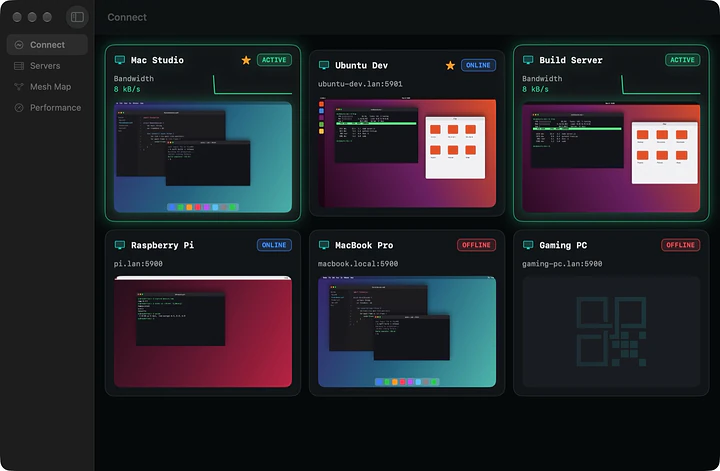
- It works with Mac Screen Sharing (with your account), TigerVNC, x11vnc, wayvnc, TightVNC, UltraVNC, RealVNC and Raspberry Pi; computers on your network show up by themselves.
- Two-way copy and paste: Tethera sends Ctrl+C to Windows and Linux and ⌘C to a Mac, and the text lands on your clipboard.
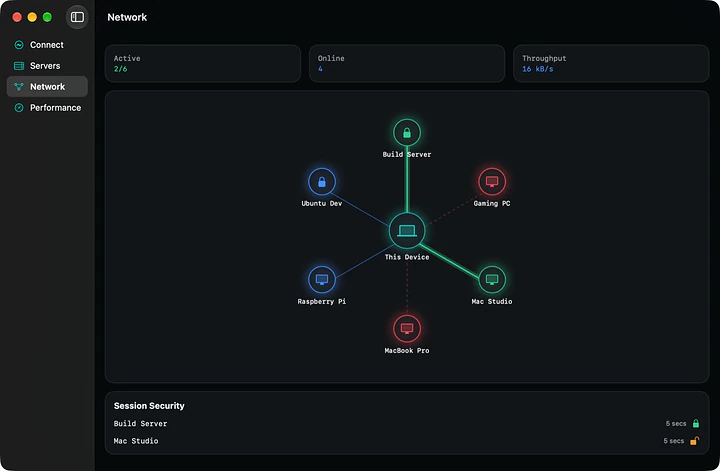
- Built-in SSH tunnel with key or password, and a padlock that tells you whether the session is encrypted.
- Away from home: in Automatic mode it connects directly when you are home and goes through the SSH gateway when you are out; with Tailscale the VPN address is enough.
- Files: drag them onto the session window and they reach the remote computer, over SFTP.
- Light: about 100 MB of memory, no CPU use when the remote screen is still, and quality that adapts to the bandwidth by itself.
If something goes wrong
| Problem | What to do |
|---|---|
| Connection refused | The VNC server is not running or listens on another port: with TigerVNC display :1 uses 5901. |
| Right password but the Mac refuses | With Screen Sharing you sign in with a Mac account's name and password, and the account must be one of those allowed. |
| "Too many security failures" (TigerVNC) | The server blocked you after wrong attempts: wait, or restart it with vncserver -kill :1 and vncserver :1. |
| Black screen on Linux | On Wayland x11vnc cannot see the screen: use wayvnc, or log in with an X11 session. |
| Garbled picture or wrong colours | The server is old: pick a simpler encoding (in Tethera, the Compatibility profile). |
| Slow from away | Lower the remote desktop's resolution or the JPEG quality; Tethera does it by itself when the bandwidth drops. |
Frequently asked questions
How do I control my Mac from another computer?
Turn on System Settings › General › Sharing › Screen Sharing and connect with a VNC client to the Mac's address, signing in with your account's name and password. From another Mac just press ⌘K in Finder and type vnc://address; from Windows or Linux use a client such as Tethera.
Is there a free VNC client for Windows, Mac and Linux?
Yes. Tethera is a free VNC client, with no account, for macOS 15 or later, Windows 10/11 (x64 and ARM64) and Linux (x86_64 and ARM64), with SSH tunnels, copy and paste and file transfer.
Can I use VNC away from home?
Yes, but without opening port 5900 on your router: use a VPN such as Tailscale or an SSH tunnel through an always-on computer at home. Tethera picks the direct road at home and the SSH gateway when you are away by itself.
What port does VNC use?
5900 for the first screen; with TigerVNC and other Linux servers each display adds one: :1 is 5901, :2 is 5902.